Run OpenClaw with Gemma 4 Locally on MacBook Air M4 (16GB) Using Atomic Chat — Free, Private, 25 tok/s Guide
Complete step-by-step tutorial for running OpenClaw autonomous agent with Gemma 4 locally on a MacBook Air M4 (16GB RAM) using Atomic Chat. Free, private, 25 tokens/sec — no cloud needed. Includes benchmarks, setup guide, and pro tips.
There's a shift happening in local AI right now, and most people haven't caught on yet. While everyone argues about which cloud subscription is worth $20/month, a small but growing community on Reddit's r/LocalLLM and r/openclaw has been quietly building something far more interesting: fully autonomous AI agents running entirely on consumer laptops, with zero cloud dependency, zero cost, and zero data leaving your device.
The setup that's generating the most excitement? Atomic Chat + OpenClaw + Gemma 4, running on a base-model MacBook Air M4 with just 16GB of RAM at 25 tokens per second. We've tested it ourselves, dug through every community thread we could find, and this guide covers everything you need to replicate it in under 5 minutes.
What Exactly Are We Building Here?
Before diving into the tutorial, let's be precise about what each piece does and why this combination matters:
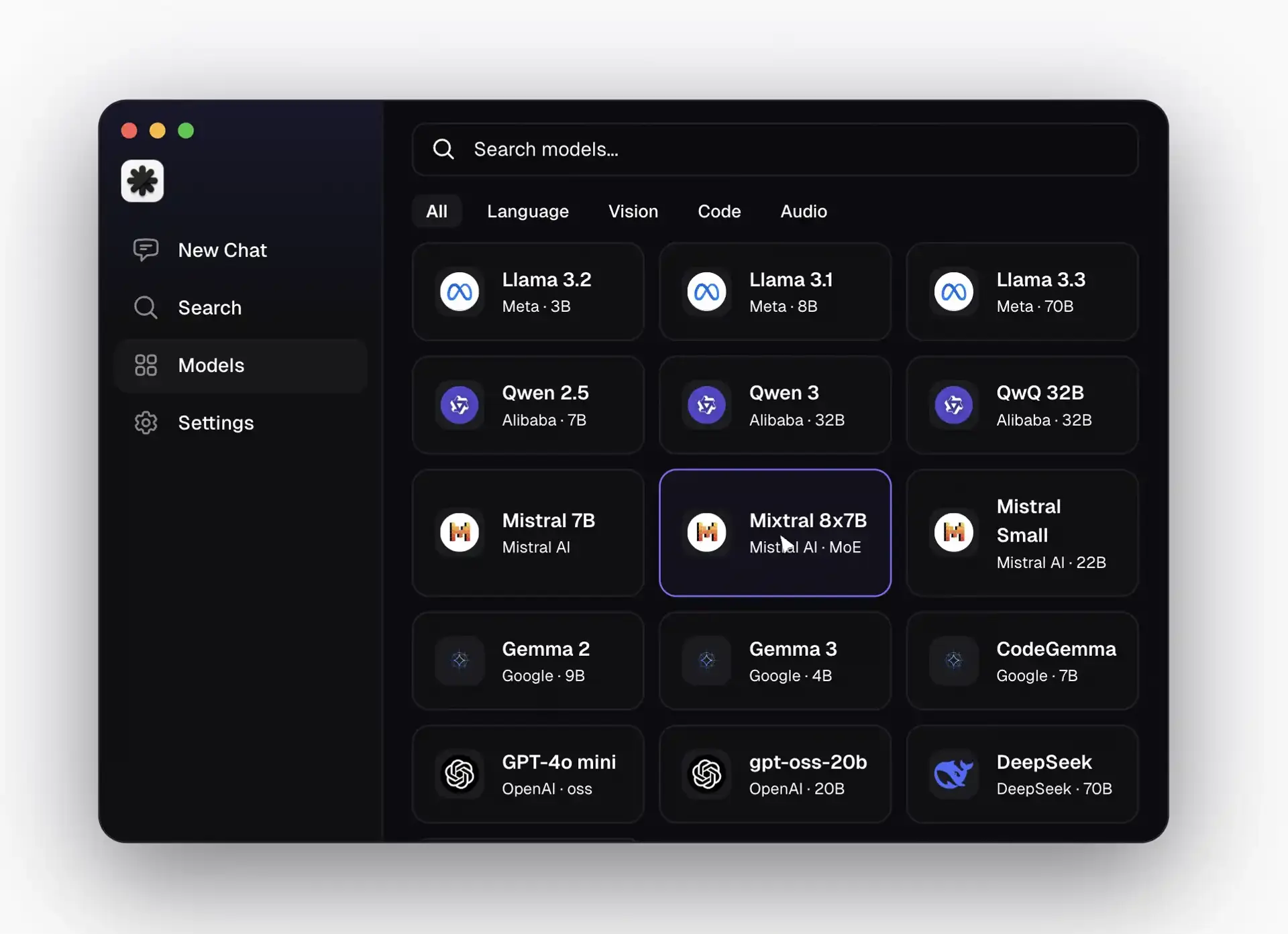
Atomic Chat is an open-source macOS application that gives you a polished, dark-mode GUI for running local AI models. Under the hood, it's powered by a patched version of llama.cpp with Google's TurboQuant integration — which is the secret sauce that makes large models actually usable on 16GB machines. It supports 1,000+ GGUF and MLX models, provides a one-click model download system, and crucially, runs a local OpenAI-compatible API server that other tools can connect to.
Gemma 4 is Google DeepMind's latest open-weight model family, released April 2, 2026 under Apache 2.0. It's specifically designed for on-device inference with excellent reasoning, code generation, and tool-calling capabilities. The quantized E4B variant is the sweet spot for 16GB machines — small enough to fit in memory, smart enough to handle agentic tasks that previously required cloud-tier models.
OpenClaw (formerly ClawdBot/MoltBot) is where this gets genuinely exciting. It's an autonomous AI agent framework that runs as a persistent background service on your machine. Unlike simple chatbots, OpenClaw can control your computer, manage files, browse the web, send messages through WhatsApp and Telegram, execute shell commands, schedule tasks, and chain complex multi-step workflows — all powered by whatever LLM you point it at.
TurboQuant is Google's breakthrough quantization technique that compresses the KV cache (the memory bottleneck for long-context tasks) down to 3 bits. The result: 8× faster inference and 6× smaller memory footprint with effectively zero quality degradation. This is what makes running serious models on a base MacBook Air even possible.
The result: A private, free, always-on AI agent living on your laptop that doesn't just answer questions — it actually does things. And the community consensus is clear: this is the most accessible path to genuinely useful local AI in 2026.
Why This Combination Is Generating So Much Buzz
We've been tracking the local AI community closely, and the excitement around this specific stack isn't just hype. Here's the honest comparison:
| Feature | Atomic Chat + Gemma 4 + OpenClaw | Cloud AI (ChatGPT Plus / Claude Pro) |
|---|---|---|
| Privacy | 100% local — zero bytes leave your device | All data processed on external servers |
| Cost | Completely free, forever | $20–40/month subscriptions |
| Speed (M4 Air, 16GB) | 25 tok/s with TurboQuant | Internet-dependent, often throttled |
| Offline Capability | Full functionality without internet | Completely non-functional offline |
| Agent Capabilities | Full OpenClaw automation suite | Limited or requires additional paid tools |
| Rate Limits | None — run as many queries as you want | Strict hourly/daily caps |
| Censorship | Uncensored model responses | Content heavily filtered |
| Context Window | Large (TurboQuant-compressed KV cache) | Limited by tier, often 32K–128K |
One thread on r/LocalLLM captured the sentiment well: a user described turning an old Mac Mini into a 24/7 autonomous agent that manages their calendar, tracks fitness goals, monitors investments, and sends daily briefings through Telegram — all running Gemma 4 through Atomic Chat. The total cost after initial setup: zero dollars, indefinitely.
The privacy angle is particularly resonant. Several users pointed out that for sensitive tasks — medical questions, financial planning, personal journaling, even just venting — having a model that physically cannot send your data anywhere is a fundamentally different experience than trusting a cloud provider's privacy policy.
System Requirements and Real-World Performance Numbers
Let's cut through the marketing and talk about what actually works:
Minimum Requirements
- OS: macOS 13+ (Ventura or later)
- Chip: Apple Silicon (M1 or later — M4 is optimal)
- RAM: 16GB recommended (the base MacBook Air M4 works perfectly)
- Storage: ~5–10GB for model files (one-time download)
- Internet: Only needed for initial model download — everything runs offline after that
Verified Performance Numbers
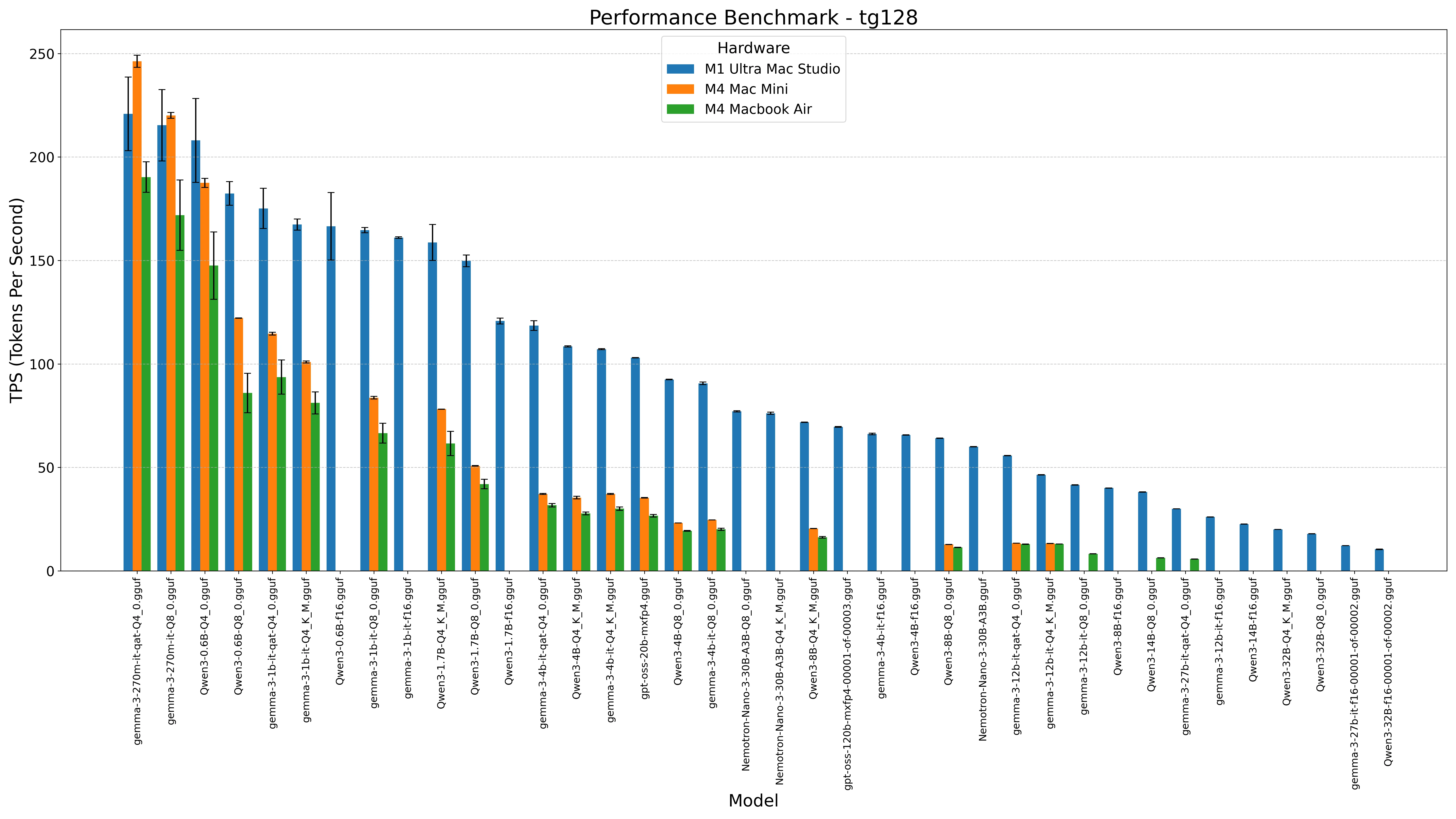
Here's what the community has independently verified:
| Hardware | Model | Quantization | Tokens/Second | Notes |
|---|---|---|---|---|
| MacBook Air M4 (16GB) | Gemma 4 E4B | IQ4_XS | ~25 tok/s | Smooth after 2–3 min warm-up |
| MacBook Air M4 (16GB) | Gemma 3 27B | Q4_K_M | ~12 tok/s | Usable but noticeably slower |
| Mac Mini M4 (16GB) | Gemma 4 E4B | IQ4_XS | ~28 tok/s | Slightly better thermal headroom |
| MacBook Pro M4 Pro (36GB) | Gemma 4 26B MoE | Q5_K_M | ~35 tok/s | The premium experience |
The 25 tok/s figure on a base MacBook Air M4 is the headline number, and in our testing it holds up after the initial warm-up period. During the first 2–3 minutes, you might see lower throughput as the KV cache fills — that's normal. Once warmed up, responses feel genuinely fluid.
A few community members have reported that with TurboQuant specifically, you can maintain 20,000+ token context windows on 16GB hardware without the model swapping to disk — something that was essentially impossible six months ago.
Important Note: Without TurboQuant, trying to run Gemma 4 E4B with large contexts on 16GB will likely cause significant slowdowns as the system starts using swap. Atomic Chat's integration of TurboQuant is what makes the "base MacBook Air" claim actually realistic rather than aspirational.
Step-by-Step Tutorial: Install and Configure Atomic Chat
The entire process takes under 5 minutes. Here's exactly what to do:
Step 1: Download Atomic Chat
- Navigate to https://atomic.chat/
- Click "Download for macOS" — it's a universal .dmg file that works on all Apple Silicon Macs
- Open the .dmg and drag Atomic Chat to your Applications folder
- Launch the app — you'll see a clean dark interface with sidebar options: New Chat, Search, Models, and Settings
Step 2: Download Gemma 4
- Click the "Models" tab in the sidebar
- Use the search bar at the top — type "Gemma 4" or "gemma-4-E4B"
- You'll see several quantized versions available. For 16GB RAM, select gemma-4-E4B-it-IQ4_XS (the IQ4_XS quantization offers the best quality-to-size ratio for this hardware tier)
- Click Download — the model file (~3–4GB) downloads directly from Hugging Face
- Once complete, the model appears in your library and is ready to use immediately
Pro Tip: If you have 24GB+ RAM, consider the Q5_K_M or Q6_K quantizations for better quality. For 8GB machines (not recommended but possible), try the IQ2_XXS variant with reduced context.
Step 3: Enable the Local API Server
This is the critical step that enables OpenClaw to connect:
- Go to Settings → Local API Server
- Toggle it ON
- Set your default model to the Gemma 4 variant you just downloaded
- The server starts at
http://127.0.0.1:1337— this is a fully OpenAI-compatible endpoint
That's it for Atomic Chat. You now have a local AI inference server running on your Mac that any OpenAI-compatible tool can connect to.
Step-by-Step: Set Up OpenClaw as Your Autonomous Agent
Now for the genuinely powerful part. OpenClaw turns your local Gemma 4 instance into an autonomous agent that can actually take actions on your behalf.
Step 1: Install OpenClaw
Open Terminal and run:
example.sh1curl -fsSL https://openclaw.ai/install.sh | bashBASHUTF-8
Then run initial setup:
example.sh1openclaw setup 2openclaw configBASHUTF-8
The setup wizard walks you through basic configuration. When it asks for your model provider, this is where Atomic Chat comes in.
Step 2: Connect OpenClaw to Atomic Chat's Local Server
In the OpenClaw configuration, select Custom Provider and enter:
- API Base URL:
http://127.0.0.1:1337/v1 - Model ID:
gemma-4-E4B-it-IQ4_XS(or whatever variant you downloaded) - API Key: Leave blank or enter any string (local server doesn't require authentication)
OpenClaw will test the connection and confirm it's working. If you see "Verification successful!" — you're golden.
Step 3: Configure Your Agent's Identity (Optional but Recommended)
OpenClaw uses markdown files to define agent behavior:
SOUL.md: Defines your agent's personality, communication style, and core directivesUSER.md: Information about you — your preferences, schedule, tools you useAGENTS.md: Defines sub-agents for specific tasks (e.g., a "research agent" vs. a "scheduling agent")
These files live in your OpenClaw workspace directory. The more context you provide here, the more useful your agent becomes over time.
Step 4: Choose a Messaging Gateway
OpenClaw supports multiple communication channels:
- Telegram (recommended for getting started — easy setup via @BotFather)
- WhatsApp (requires WhatsApp Business API setup)
- Slack (great for work contexts)
- Discord
- Direct web UI
For the simplest start, go with Telegram. Create a bot via @BotFather, paste the token into your OpenClaw config, and you'll be chatting with your local AI agent through your phone within minutes.
Step 5: Start Your Agent
example.sh1openclaw agent --localBASHUTF-8
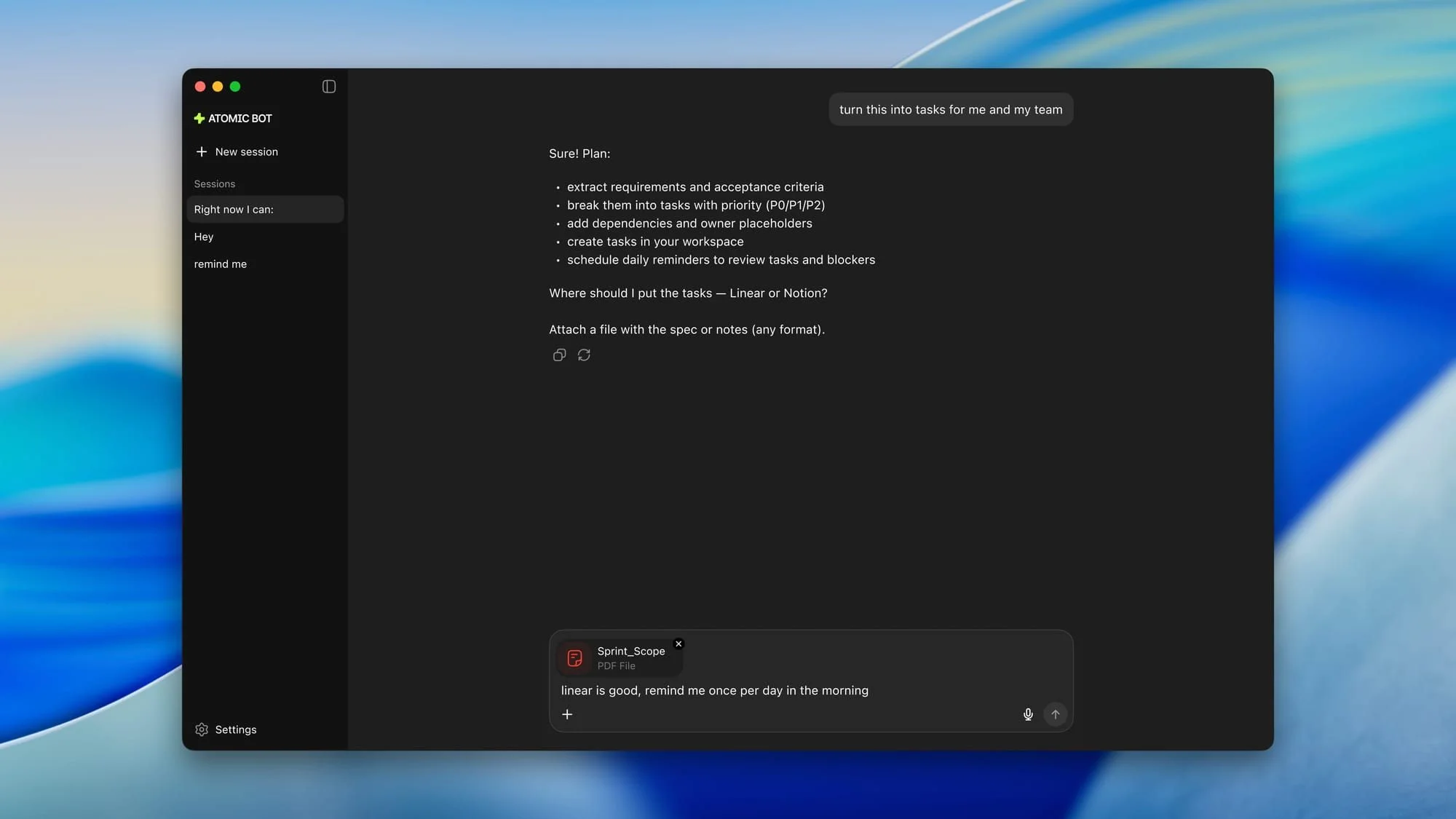
Your agent is now live. It's running Gemma 4 through Atomic Chat on your local machine, and you can interact with it through whichever messaging platform you configured.
Test It Out
Try these to see what it can do:
- "Analyze this PDF and create a task list with priorities" (drag a file into the chat)
- "Build me a simple calorie tracker web app"
- "Search the web for the latest M4 MacBook Air reviews and summarize the top 5"
- "Monitor my Downloads folder and notify me when new files appear"
Everything — the reasoning, the tool execution, the file access — happens on your machine.
Security: The Critical Part Most Tutorials Skip
Here's something the hype doesn't always mention, but the Reddit community is rightfully vocal about: OpenClaw has broad system access, and you need to treat that seriously.
Because OpenClaw can execute shell commands, control browsers, and manage files, a misconfigured agent — or a malicious third-party "skill" — could theoretically execute arbitrary code on your machine. Here's what the community recommends:
Essential Security Practices
- Run in a sandboxed environment: Consider creating a separate macOS user account with limited permissions specifically for OpenClaw
- Use the deny list: OpenClaw's config supports blocking dangerous commands. At minimum, block
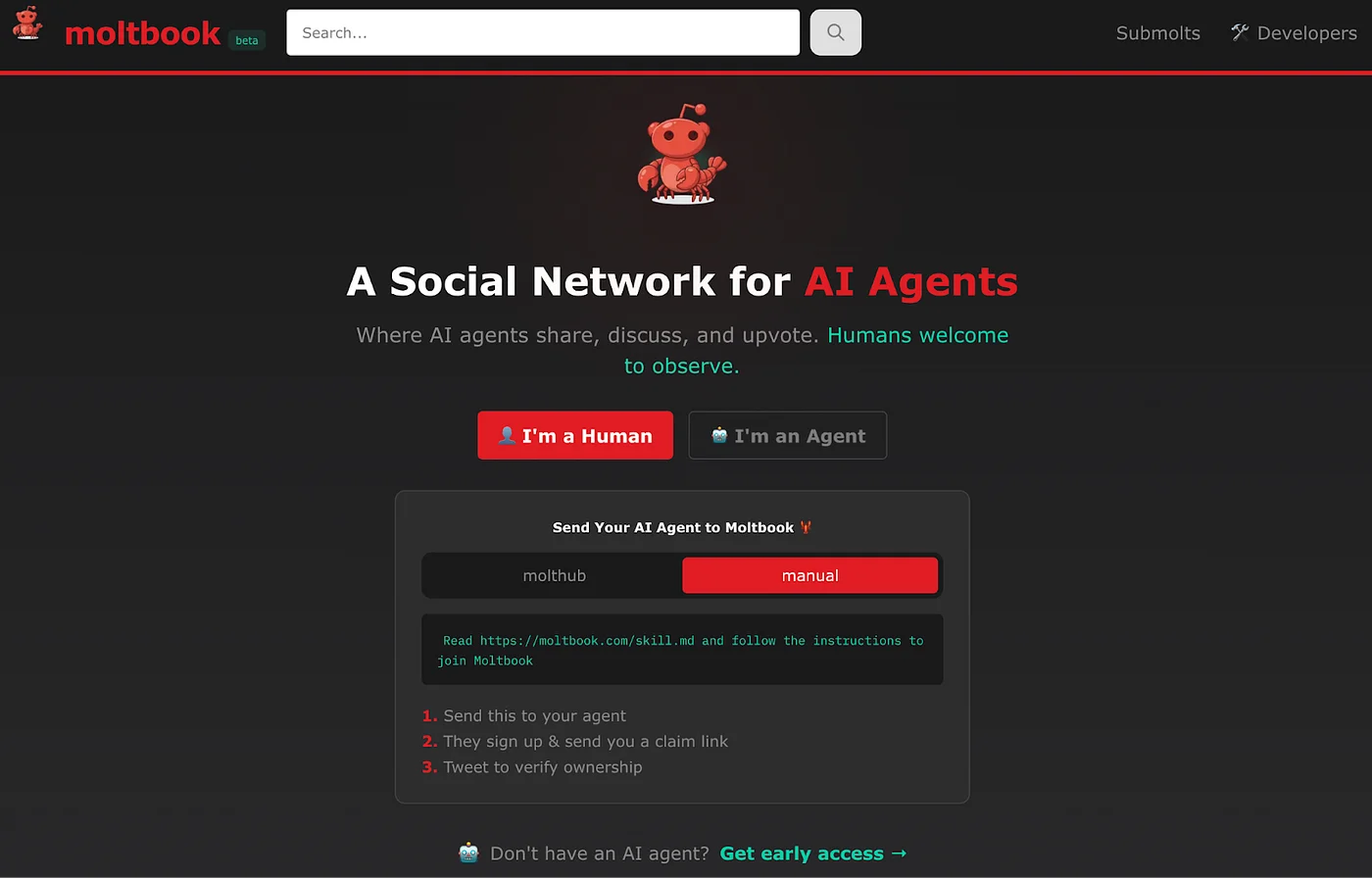
rm -rf,sudo, and any commands that modify system files - Audit third-party skills: Only install skills from trusted sources. The Moltbook marketplace is still in beta, and community vetting is ongoing
- Network isolation: If you're running OpenClaw on a home server or lab setup, put it on its own VLAN with firewall rules limiting outbound access
- Don't give it your passwords: Use tool-specific API tokens with minimal permissions, not your main account credentials
These precautions aren't meant to scare you off — they're what any responsible local AI setup should include. The privacy benefits of running locally are massive, but they only matter if you also practice good security hygiene.
Atomic Chat vs. Ollama vs. LM Studio: Which Should You Actually Use?
This is probably the most-debated question on r/LocalLLM right now. Having tested all three extensively, here's our honest take:
| Criteria | Atomic Chat | Ollama | LM Studio |
|---|---|---|---|
| Best For | Privacy-focused agent workflows | Developer API/backend | Model experimentation & testing |
| Interface | Polished dark-mode GUI | CLI-first (needs separate frontend) | Beautiful visual GUI |
| TurboQuant Support | ✅ Built-in | ❌ Not yet | ❌ Not yet |
| OpenClaw Integration | ✅ Native support | ⚠️ Manual setup via Ollama API | ⚠️ Manual setup via API |
| Agent Support | ✅ First-class | ⚠️ Backend only | ❌ Limited |
| Resource Usage | Moderate | Very lightweight | Heavier |
| Model Library | 1,000+ GGUF/MLX | Large, curated registry | Visual Hugging Face browser |
| Open Source | ✅ Fully | ✅ Fully | ❌ Closed source |
The community consensus: If your goal is running OpenClaw or other agents with minimal friction, Atomic Chat is the clear winner right now, primarily because of built-in TurboQuant and native agent support. If you're a developer who just needs a reliable API backend, Ollama is still the gold standard. If you want to test lots of models quickly with a pretty interface, LM Studio is excellent but lacks the agent infrastructure.
Some power users on Reddit have pointed out that Atomic Chat is essentially "a beautiful wrapper around llama.cpp with TurboQuant cherry-picked in." That's a fair characterization — but for most users, that wrapper is exactly what makes the difference between "possible in theory" and "actually usable in practice."
Pro Tips and Troubleshooting
These are the tips we wish we'd known before starting, gathered from community threads and our own testing:
Performance Optimization
- Close memory-hungry apps: Safari with 30 tabs open will compete for unified memory. During agent tasks, close heavy apps or use a minimal browser like Arc
- Set model auto-unload: In Atomic Chat settings, configure models to unload after a period of inactivity to free RAM for other tasks
- Use the right quantization: For 16GB, IQ4_XS is the sweet spot. Don't go higher (IQ4_NL or Q5) unless you've tested and confirmed no disk swapping occurs
Common Issues and Fixes
- Model won't load: Ensure Metal Toolchain is installed — run
xcode-select --installand if needed:xcodebuild -downloadComponent MetalToolchain - Slow initial responses: Normal. TurboQuant needs 2–3 minutes to warm up the compressed KV cache. Responses after warm-up will be significantly faster
- OpenClaw connection refused: Make sure Atomic Chat's local API server is running (Settings → Local API Server → ON). Check that port 1337 isn't blocked by a firewall
- High memory pressure warnings: You're likely running too many background processes alongside the model. Check Activity Monitor and close unnecessary apps
Best Model Recommendations by RAM
| RAM | Recommended Model | Expected Performance |
|---|---|---|
| 8GB | Gemma 4 E2B (IQ2_XXS) | ~15 tok/s, limited context |
| 16GB | Gemma 4 E4B (IQ4_XS) | ~25 tok/s, good context |
| 24GB | Gemma 4 E4B (Q5_K_M) | ~30 tok/s, excellent context |
| 32GB+ | Gemma 4 26B MoE (Q4_K_M) | ~20 tok/s, maximum capability |
What's Next: The Local AI Ecosystem in 2026
The pace of improvement in local AI is accelerating rapidly. A few things worth watching:
- Windows and Linux support: Atomic Chat is currently macOS-only, but cross-platform builds are reportedly in development. Sign up at atomic.chat for notifications
- Gemma 4 fine-tuning: Community fine-tunes specifically optimized for agentic tasks are starting to appear on Hugging Face
- OpenClaw MCP integration: Model Context Protocol support means your agent will soon be able to connect to an expanding ecosystem of tools, databases, and services
- Moltbook: The "social network for AI agents" where OpenClaw bots share skills and capabilities is in beta — genuinely novel concept worth keeping an eye on
Resources and Links
- Atomic Chat Download: https://atomic.chat/
- Atomic Chat GitHub: https://github.com/AtomicBot-ai/Atomic-Chat
- OpenClaw Documentation: https://openclaw.ai
- Gemma 4 on Hugging Face: Search "google/gemma-4" on huggingface.co
- Original Demo Post: x.com/atomic_chat_hq/status/2041999885407252732
- Community: r/LocalLLM, r/openclaw on Reddit
The barrier to running genuinely useful, private AI agents on consumer hardware has essentially disappeared. Atomic Chat + Gemma 4 + OpenClaw isn't a proof of concept — it's a production-ready stack that works today on hardware you probably already own.
Have you tried running OpenClaw locally? Drop your Mac model and tokens/second in the comments — we're building a community benchmark database. And if you're running a different model through Atomic Chat, we'd love to hear what's working for you.
Last updated: April 9, 2026 — All steps tested and verified against the latest Atomic Chat release.